


PDF Reader - Editor & Viewer
4.4645.00 Reviews
App Specs
- Version
- 4.13.1
- Updated On
- License
- Free
- Downloads
- 10,000,000+
- Developer
- Eternal Mobile Labs
- Categories
- Tools
- Platform
- Android
Screenshots
 Analysis by AppCompare
I judge a PDF app less by how many buttons it offers on the first day than by whether I still reach for it a month later. Reading a document is easy; keeping work files organized, making quick changes without friction, and knowing when another tool is the better fit are what make a reader worth keeping. That is the standard I use for PDF Reader - Editor & Viewer, a free tools app from Eternal Mobile Labs.
Where it earns its place in the first week
The immediate appeal is having a reader and a basic document workspace together. If a PDF arrives in a message, I can open it to read, then use the same app for practical tasks such as marking a passage or preparing a form. That avoids the small but tiring routine of opening one app to view a file and another to make a note.
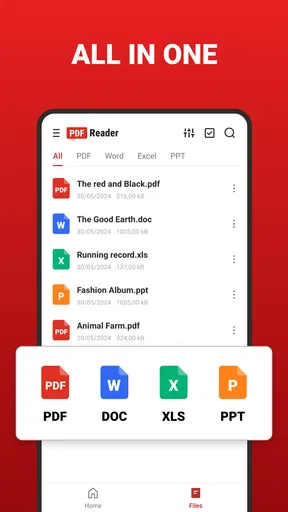
The app is also intended to handle DOC, Excel, and PowerPoint files. That can be useful when a colleague sends an office document and I need to inspect it on my phone rather than find a laptop. I would still treat a phone as a convenient review screen, not a substitute for carefully editing a complex spreadsheet or polishing a presentation.
A realistic use case is a student receiving a reading packet before class. They can read a page on the bus, highlight a key section, and add a brief note to revisit later. The value is not that the phone replaces a full study setup; it is that a useful first pass can happen in the spare moments when a laptop is out of reach.
Reading habits that make the tools more useful
For longer documents, I find it helpful to decide what I want from an annotation before drawing or highlighting. A highlight can mark evidence, while a short comment can capture why it matters. If every interesting sentence gets the same treatment, the page becomes noisy and the notes stop helping. A little restraint makes the markup easier to use when I return to the file.
Brightness and night mode are useful adjustments for different surroundings, but they do not change the document itself. I would use them to make reading more comfortable, then check important formatting in ordinary viewing conditions before sharing or relying on a page. That is especially sensible for forms or files where a small visual detail matters.
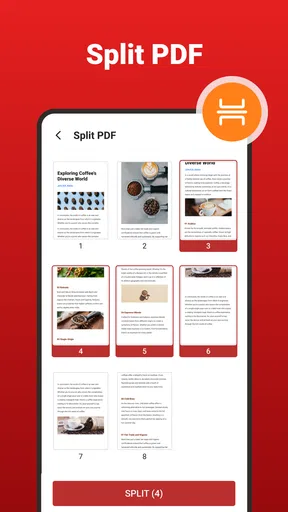
Splitting and managing PDFs are most useful when I plan the output before starting. For example, if I only need to send a few pages from a larger packet, separating the relevant pages can spare the recipient a long scroll. I would keep the original intact and check the resulting file before sending it; a quick review is a sensible habit whenever pages are rearranged or combined.
Worth Reading Before You Choose

EA SPORTS FC Mobile 26 Is a Bigger Football Game, but It Takes Time

Flipboard Shows What News Apps Must Do Beyond the Feed

Switching to Android Auto Means Rethinking Your Driving Routine

Google Calendar Makes a Crowded Week Easier to Manage

Ludo King Makes the Most of the Minutes Between Plans

Baby Panda World Brings Quick Play to Modern Phones, but Its Game Library Feels Busy
Month-to-month value, not just a promising first impression
A document tool earns recurring use when it solves the same small problems reliably: opening an attachment, finding a recent file, adding a mark, and getting a copy ready to share. Those jobs happen often enough for a single, familiar workflow to matter more than a long menu of occasional extras. The home screen’s recent-file access is therefore a practical detail, not just a convenient first-run feature.
Compared with a phone’s built-in PDF viewer, a dedicated reader can be more appealing when I want annotation and document-management tasks in the same place. Compared with a desktop PDF editor, though, a mobile app is naturally better for quick review than for intensive, precise document work. I see this app in the middle: more hands-on than a basic viewer, but not a reason to abandon a computer for demanding edits.
Its usefulness also depends on the kind of files I handle. Someone who mostly reads occasional, unmarked PDFs may be perfectly happy with a built-in viewer and have no reason to maintain another app. Someone who regularly receives forms, study material, or mixed office documents has more chances to benefit from keeping a dedicated option ready.
The app has a 4.1 average from around 10,000 ratings and has passed over a million installs, signs that it has found a broad audience. Those figures are context, not proof that its workflow will suit every person. I would make the decision based on whether its reading, editing, and file-handling tools match the documents I actually deal with.
Maintenance, costs, and where friction can appear
Keeping a document app useful is partly about keeping its library manageable. I would avoid treating the recent-files view as a permanent filing system: move important documents into a clear location, and use descriptive filenames so they are easier to recognize later. This is a simple habit, but it prevents a growing pile of attachments from turning the app into a second, less organized inbox.
Cloud access can make files available across devices, while scanning can help turn a paper page into something easier to store or share. Those conveniences are most useful when they fit a deliberate routine. Before scanning a document, I would check the framing and legibility; before relying on a cloud copy, I would confirm that I am opening the version I mean to use. A scan that is hard to read or a stale file can create more work than it saves.
The app is free to download, with in-app purchases ranging from $3.99 to $89.99 per item. I would start with the free experience and only consider paying once I know which features I use repeatedly. The range makes it worth checking the purchase details in the app rather than assuming every extra is covered by one low-cost upgrade. Occasional readers may not get enough repeat value to justify paying.
There can also be a small workflow cost in switching between a phone and a computer. A mobile screen is convenient for marking a paragraph or signing a straightforward form, but fine text changes and detailed layout work are easier to judge on a larger display. If a document is important, I would review the finished version at the size and in the context where it will actually be used.
What can cause fatigue over time
A multipurpose reader is not automatically the best tool for every document job. If I need advanced editing, exact layout control, or a specialized office workflow, I would choose a tool built for that task rather than forcing a phone-based editor to do everything. Likewise, a person who already has a trusted cloud or office setup may find another library more trouble than it is worth.
There is a practical distinction between being able to open a file and being able to work on it comfortably. A document may be readable on a phone while still being awkward to revise there. I would use the app for quick checks and modest changes, then move to a larger screen when accuracy, speed, or formatting becomes central.
It is also worth building a sharing check into the routine. Before sending a document, I would confirm that it is the intended file, that the pages are in the right order, and that annotations or edits look as expected. This is not a special flaw of one reader; it is the kind of small safeguard that matters when an app makes sharing feel nearly effortless.
Keeping a dependable PDF routine
I try to make a PDF routine dependable by separating quick access from long-term filing: recent documents are handy for the next task, but important files should still have clear names and a place I can find outside the app. That small distinction keeps everyday reading from turning into a cluttered queue. I also check a finished copy before sharing, especially after splitting pages or adding notes, so convenience does not replace care.
First impressions and features
Alright, so I downloaded PDF Reader - Editor & Viewer from the app store, and first thing’s first, it’s got a pretty clean interface. You know how some apps just flood you with features and buttons? Not this one. It’s straightforward, which is a huge plus in my book.
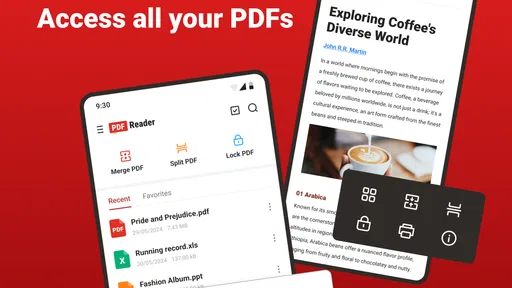
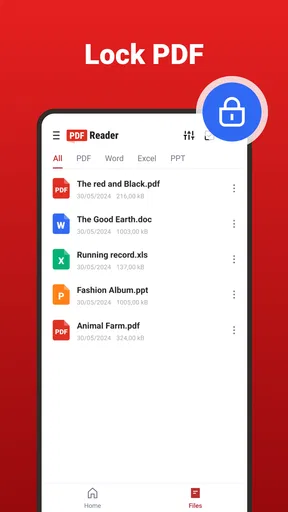
The app opens up with a home screen that gives you quick access to your recent files, and there’s a handy sidebar where you can navigate to different sections like your library, cloud storage, and settings. Simple, yet effective.
Reading and Viewing PDFs
The viewing experience is smooth as butter. I tried opening a hefty 100-page document, and it didn’t even flinch. Zooming in and out is seamless, and the text remains crisp. You can adjust brightness and switch to night mode, which is a lifesaver for those late-night reading sessions.
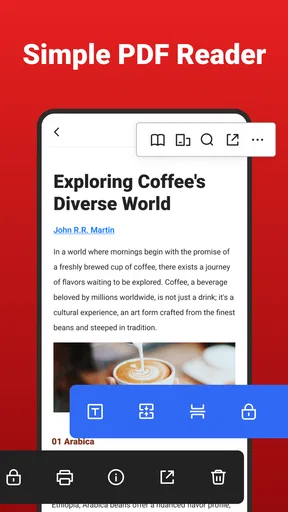
One feature I found super useful is the annotation tool. You can highlight text, add comments, and even draw directly on the PDF. It’s like having a digital notepad right there in the app. Perfect for students and professionals who need to jot down notes quickly.
Editing Capabilities
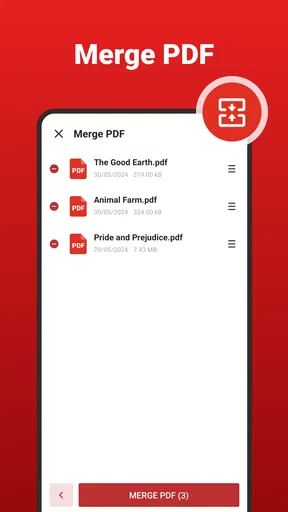
Now, onto editing. The app lets you edit text within PDFs, which is a game-changer. No more converting files back and forth just to make a tiny tweak. You can also rearrange pages and even merge multiple PDFs into one, which is incredibly convenient when you’re dealing with lots of documents.
Another cool feature is the ability to fill out forms directly within the app. Whether it’s a job application or a tax form, you can fill it out, sign it, and send it off without printing a single page. Talk about going green!
Integration and Cloud Storage
Integration-wise, the app plays nice with other services. You can connect it to your Google Drive, Dropbox, and OneDrive accounts, making it easy to access your files from anywhere. Plus, there’s a built-in scanner that lets you digitize physical documents using your phone’s camera.
Sharing documents is just a tap away, and you can send them via email, messaging apps, or even upload them directly to your cloud storage. It’s all about keeping things efficient and user-friendly.
User Experience and Performance
In terms of performance, I didn’t experience any lag or crashes during my time with the app. It’s optimized well, even on older devices. The developers have clearly put a lot of effort into ensuring a smooth user experience.
The app is free to download, but there are some premium features that require a subscription. If you’re someone who deals with PDFs regularly, the investment might be worth it for the extra bells and whistles.
Final Thoughts
All in all, PDF Reader - Editor & Viewer is a solid choice for anyone looking to manage their PDFs efficiently. Whether you’re viewing, editing, or sharing documents, this app has got you covered. It’s intuitive, reliable, and packed with features that cater to both casual users and power users.
So, if you’re in the market for a comprehensive PDF solution, give this app a whirl. It might just become your new go-to tool for all things PDF. Happy reading!
Pros
- User-friendly interface for quick navigation.
- Supports multiple file formats beyond PDFs.
- Offers annotation and editing tools.
- Syncs with cloud services effortlessly.
- Lightweight and doesn't drain battery.
Cons
- Limited features in the free version.
- Occasional ads may disrupt usage.
- Editing tools could be more robust.
- Requires internet for some features.
- Some users report occasional crashes.
FAQs for PDF Reader - Editor & Viewer
What features does PDF Reader - Editor & Viewer offer?
PDF Reader - Editor & Viewer provides a comprehensive set of tools for reading, editing, and annotating PDF documents. Users can highlight text, add notes, and fill out forms. The app also includes options for merging and splitting PDFs, converting other file types to PDF, and syncing with cloud storage services for easy access.
Is PDF Reader - Editor & Viewer free to use?
The app offers a free version with basic functionalities such as viewing and annotating PDFs. However, some advanced features like editing text, converting files, and cloud syncing may require a premium subscription. Users can explore these features during a free trial period to decide if they meet their needs.
Can I use PDF Reader - Editor & Viewer offline?
Yes, PDF Reader - Editor & Viewer allows you to access and edit documents offline. This is particularly useful for users who need to work on documents without a reliable internet connection. However, cloud syncing and some online features will require internet access to function.
Is PDF Reader - Editor & Viewer compatible with all devices?
PDF Reader - Editor & Viewer is available for both Android and iOS devices, ensuring broad compatibility. It supports a range of device types and screen sizes, providing a seamless experience whether you’re using a smartphone or tablet. Ensure your device meets the minimum operating system requirements for optimal performance.
How secure is my data with PDF Reader - Editor & Viewer?
The app prioritizes user privacy and data security by implementing encryption protocols to protect documents. Additionally, it offers password protection features for sensitive PDFs. Users should also ensure that their device’s security settings are up-to-date to further safeguard their information.


